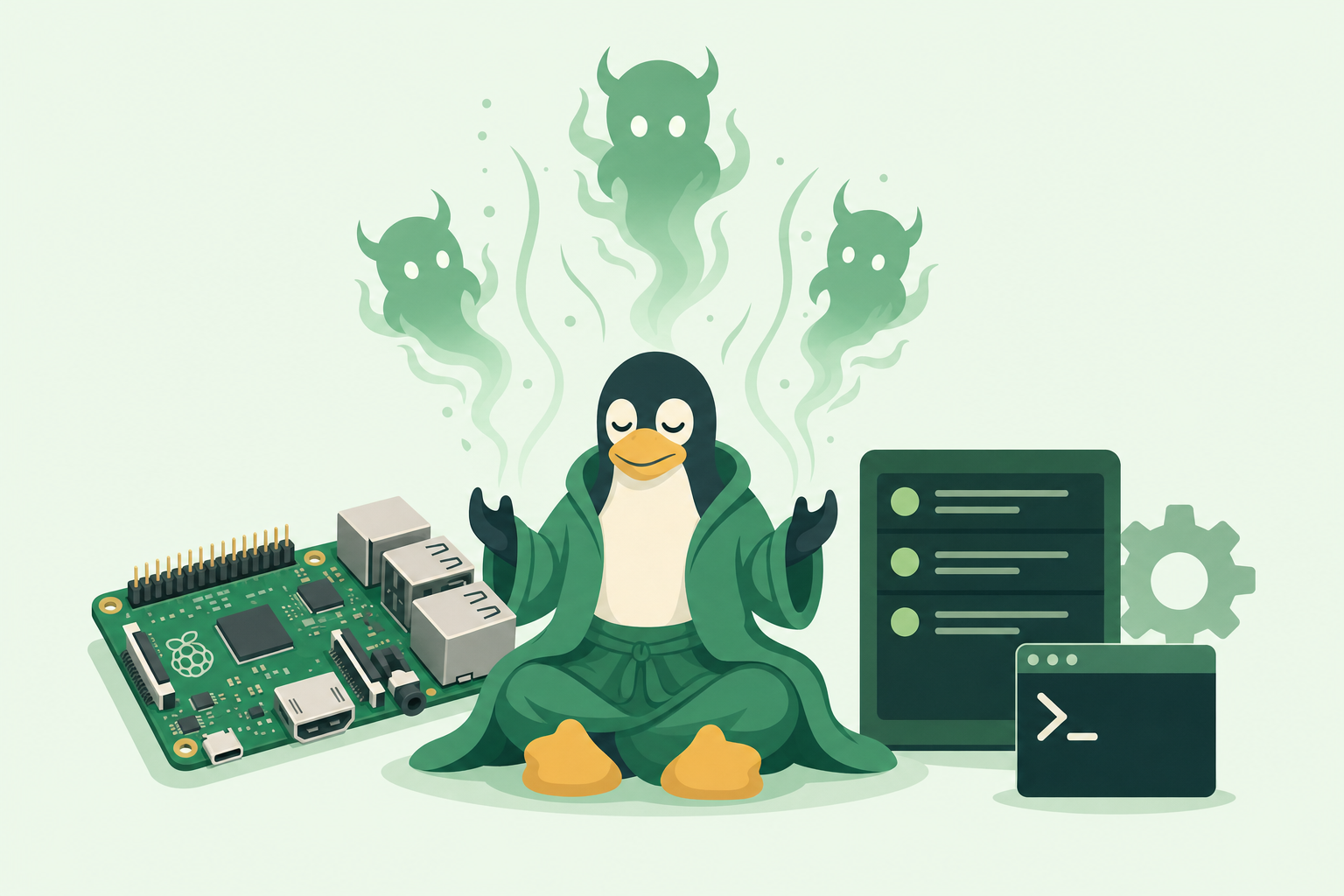
With a multitude of Raspberry PI’s deployed around the house, each taking a dedicated duty in ensuring that services run transparently; It is not uncommon for me to discover the initialization scripts designed to have these services auto start at boot is not working.
The content of this post is a reference for different methods which can be employed to resolve these stubborn daemons; which always are to fond of reappearing after an unplanned outage; or what is more commonly referred to as a Power Failure!
rc.local
To start a program on your Linux distribution (I am focusing on Raspbian running on a Raspberry Pi) at start-up, before other services are started, we will use the file rc.local.
Editing rc.local
On your Pi, using nano or vi which are installed by default, using elevated permissions trough sudo, we will edit the file /etc/rc.local:
bash ShowHide 1 line
sudo nano /etc/rc.localAdd commands to execute the program, using absolute path references of the file location.
The final command in the file should be exit 0 to indicate to the OS that we are terminating without error, then save the file and exit.
bash ShowHide 3 lines
## Start our Node Application
sudo node /usr/local/bin/cgateweb/index.js
exit
Program which are not expected to terminate, (runs continuously in an infinite loop) should be stated as a forked process by adding an ampersand & to the end of the command. Failure to address this scenario will prevent the OS from completing its boot process.
The ampersand allows the command to run in a separate process and continue booting with the main process running.
bash ShowHide 1 line
sudo node /usr/local/bin/cgateweb/index.js &Note: A script added to
/etc/rc.localis added to the OS boot sequence. A bug here will prevent the OS boot sequence progressing. Recommend that the script’s output and error messages are directed to a text file for debugging.
bash ShowHide 1 line
sudo node /usr/local/bin/cgateweb/index.js & > /var/log/myservice.log 2>&1.bashrc
The .bashrc file executes on boot and also every time when a new terminal is opened, or when a new SSH connection is made.
Normally, we would spawn our program, by placing the command at the bottom of /home/pi/.bashrc file. The program can be aborted with ‘ctrl-c’ while it is running!
bash ShowHide 1 line
sudo nano /home/pi/.bashrcAdd commands to execute the program, using absolute path references of the file location.
bash ShowHide 2 lines
echo Running at boot
sudo node /usr/local/bin/cgateweb/index.js &
The echo statement above is used to show that the commands in .bashrc file are executed on bootup as well as connecting to bash console.
init.d directory
The /etc/init.d directory contains the scripts which are started during the boot process, and also during the shutdown or reboot process.
Create a new file in the /etc/init.d directory
bash ShowHide 2 lines
cd /etc/init.d
sudo nano sample.py
With the following sample content, we define a Linux Standard Base (LSB) (A standard for software system structure, including the filesystem hierarchy used in the Linux operating system) init script.
bash ShowHide 10 lines
# /etc/init.d/sample.py
### BEGIN INIT INFO
# Provides:          sample.py
# Required-Start:    $remote_fs $syslog
# Required-Stop:     $remote_fs $syslog
# Default-Start:     2 3 4 5
# Default-Stop:      0 1 6
# Short-Description: Start daemon at boot time
# Description:       Enable service provided by daemon.
### END INIT INFO
init.d scripts require the above runtime dependencies to be documented so that it is possible to verify the current boot order, the order the boot using these dependencies, and run boot scripts in parallel to speed up the boot process.
Finally, the script in the /etc/init.d directory should be executable, and added to the init database with the following commands:
bash ShowHide 2 lines
sudo chmod +x sample.py
sudo update-rc.d sample.py defaults
SystemD
systemd provides a standard process for controlling what programs run when a Linux system boots up.
A sample unit file is provided by default in the OS, located at /lib/systemd/system/sample.service
bash ShowHide 2 lines
sudo cp /lib/systemd/system/sample.service /lib/systemd/system/my.service
sudo nano /lib/systemd/system/my.service
With a copy of the sample file, we define a new service called Sample Service and we are requesting that it is launched once the multi-user environment is available.
- ExecStart parameter specifies the command we want to run. * Type set to
idleto ensure that the ExecStart command is run only when everything else has loaded.
Note: Paths are absolute and define the complete location of the runtime and any input files
bash ShowHide 10 lines
[Unit]
Description=My Sample Service
After=multi-user.target

[Service]
Type=idle
ExecStart=/usr/bin/node /usr/local/bin/cgateweb/index.js

[Install]
WantedBy=multi-user.target
In order to store the output in a log file you can change the ExecStart as follows:
bash ShowHide 1 line
ExecStart=/usr/bin/node /usr/local/bin/cgateweb/index.js > /var/log/myservice.log 2>&1The permission on the unit file needs to be set to 644, and then we can tell systemd to start it during the boot sequence.
bash ShowHide 3 lines
sudo chmod 644 /lib/systemd/system/my.service
sudo systemctl daemon-reload
sudo systemctl enable my.service
crontab
Crontab is a table used by cron which is a daemon used to run specific commands at a particular time. Crontab is very flexible and can also run a program at boot or to repeat a task or program at specific times.
Create a script to bootstrap our program
bash ShowHide 1 line
sudo nano /home/pi/.scripts/myProgram.shand then add the command you wish to execute
bash ShowHide 1 line
/usr/bin/node /usr/local/bin/cgateweb/index.js > /var/log/myservice.log 2>&1Now open crontab. You most likely will be required to open crontab with elevated permissions.
bash ShowHide 1 line
sudo crontab -eAdd a new entry at the very bottom with @reboot to specify that you want to run the command at boot, followed by the command. Here we want to run our bootstrap script
crontab ShowHide 1 line
@reboot sudo /home/pi/.scripts/myProgram.shNow save the file and exit.
When you restart the pi, the command will be run and we will get the output log file.
Be a bit careful with the permissions and making sure that your program runs properly before you put it on boot: you can waste a lot of time trying to figure out what went wrong!
bash ShowHide 1 line
grep cron /var/log/syslogPart of: damianflynn