
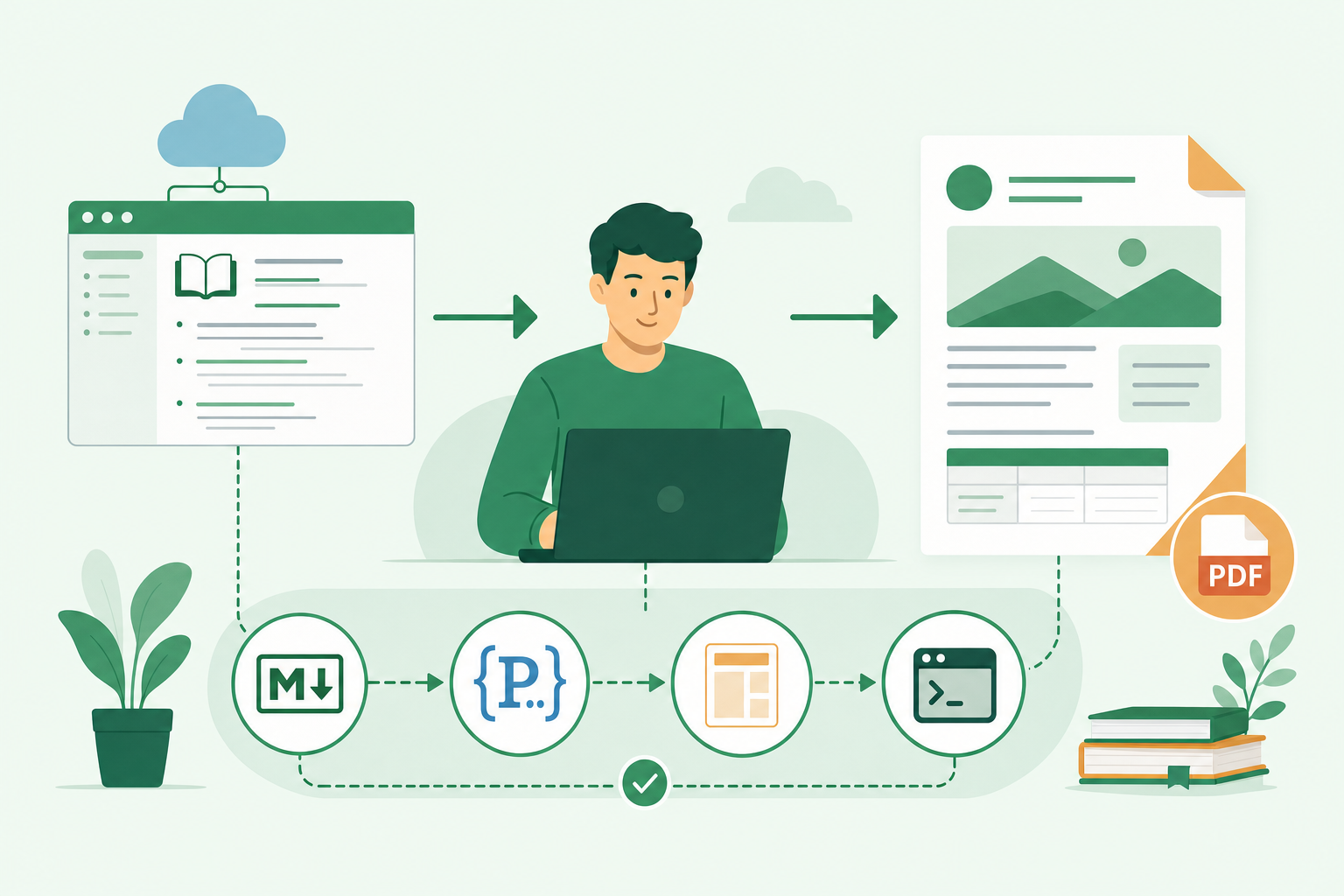
The project documentation is in good shape. The team has been maintaining an Azure DevOps wiki, the architecture pages link to the detailed design, and the deployment instructions sit alongside the decisions that explain them.
Then comes the handover request: “Can you send us the design document as a PDF? Please use the company template.”
That is a reasonable request. The recipient might not have access to Azure DevOps. An architecture board may need a fixed version to review, or the customer may need to file the document in a records system. A wiki is useful for the people doing the work; a controlled document is useful for the people accepting it.
Copying the pages into Word gets the first document out of the door. It also creates another copy to maintain. At the next revision, someone has to work out what changed, paste it again, repair the formatting and check the page numbers.
I wanted to keep the Markdown as the source and make the formatted document a build output. The implementation is available in innofactororg/markdown2pdf. It includes an Azure DevOps pipeline and a GitHub Action, both using Pandoc and a LaTeX template to produce a PDF artifact.
This post walks through the Azure DevOps route, explains where the corporate formatting belongs, and shows how the underlying Pandoc commands fit together.
Give the wiki a publishing process
Consider a design document spread across several wiki pages: an overview, requirements, architecture, security and an operational handover. The team wants to keep editing those pages normally. At agreed points, it needs to publish those sections as one document with a cover, version history, contents page and consistent branding.
There are two separate decisions here: which content belongs in the document, and how that content should look. The workflow keeps them separate:
text ShowHide 10 lines
Markdown pages + explicit document order
                  |
                  v
Merge content and resolve supported asset paths
                  |
                  v
Apply document metadata, history and replacements
                  |
                  v
Pandoc + corporate LaTeX template -> PDF artifact
The order file defines the publication. The template defines its presentation. Authors can change the design without adjusting headers and footers on every page, while template changes can be reviewed independently of technical content.
The output is a snapshot of the source used by that build. Generating it does not approve it: the organisation’s review, sign-off and records process still applies.
Start with the Git repository behind the wiki
An Azure DevOps wiki is backed by Git, but the type of wiki matters when arranging the build.
A project wiki has its own wiki repository. Use the wiki’s Clone wiki option to obtain the repository URL, then clone it using your normal authenticated Git setup:
bash ShowHide 1 line
git clone <wiki-clone-url> wiki-sourceReplace the placeholder; don’t put a personal access token into a command that will be saved in a script or build log.
A code wiki publishes Markdown from a normal repository and branch. That is a convenient arrangement when you want documentation changes reviewed through pull requests and built by a pipeline in the same repository.
The supplied conversion pipeline checks out self. It does not automatically discover or export a separate project wiki. For a project wiki, add an authenticated checkout or staging step to bring its Markdown and attachments into the build workspace, or deliberately move to a code-wiki arrangement. Keep that acquisition step explicit so that a successful build cannot quietly publish an outdated copy.
For the rest of this example, assume the Markdown is available in the pipeline’s source repository under docs/design.
Choose the document’s reading order
A wiki’s navigation tree is not necessarily a good printed document. It may include working notes, obsolete pages or several audiences’ material. Alphabetical file order is rarely what a design reviewer needs either.
The converter uses a document.order file to select the pages and their sequence:
text ShowHide 10 lines
docs/
  design/
    document.order
    Overview.md
    Requirements.md
    Architecture.md
    Security.md
    Operations.md
    images/
      architecture.png
For this document, docs/design/document.order contains:
text ShowHide 6 lines
# Customer design and handover
Overview.md
Requirements.md
Architecture.md
Security.md
Operations.md
Each entry names a file relative to the document folder, including its extension. Lines beginning with # are comments. Nested paths can be listed explicitly when the content spans subfolders.
Azure DevOps also uses .order files for wiki navigation. Those are not interchangeable with document.order: the converter expects an explicit list of Markdown paths, not a recursive walk of the wiki’s navigation files.
My early experiments used PowerShell helpers named Get-DocfxFolderItems, Get-DocfxItem and Invoke-DocfxTocProcessing to inspect the wiki hierarchy and its .order files. That was useful for exploring the source structure. The implementation shared here uses the simpler publication manifest instead; you don’t need those helpers or DocFX to run it.
This gives the author an editorial decision to review in Git. A new wiki page doesn’t become part of the customer deliverable merely because it exists.
Add the Azure DevOps pipeline
Copy the repository’s Azure DevOps pipeline into the source repository, for example as:
text ShowHide 1 line
.pipelines/docs.design.ymlUse the full supplied pipeline, not just the variable block below. For this scenario, its variables would look like this:
yaml ShowHide 14 lines
variables:
  FIRST_CHANGE_DESCRIPTION: Initial design draft
  FOLDER: docs/design
  GIT_LOG_LIMIT: 15
  HISTORY_FILE: history.txt
  MAIN_AUTHOR: Architecture Team
  ORDER_FILE: document.order
  OUT_FILE: solution-design.pdf
  PROJECT: CUSTOMER-001
  REPLACE_FILE: replace.json
  SKIP_GIT_COMMIT_HISTORY: false
  SUBTITLE: Solution Design and Operational Handover
  TITLE: Customer Platform
  WORKFLOW_VERSION: v3
The next sections define the optional history.txt and replace.json used here. Leave their variables empty if you don’t want those features.
FOLDER tells the converter where the content lives. ORDER_FILE selects the publication manifest. TITLE, SUBTITLE and PROJECT provide document metadata, while OUT_FILE names the PDF published as a pipeline artifact.
WORKFLOW_VERSION selects the converter scripts and template assets fetched from GitHub. The repository’s example uses v3. For a controlled publishing process, choose and review a specific version; use an immutable commit reference where your standards require it. A template change can alter the deliverable even when none of its Markdown changes.
The supplied pipeline performs these jobs:
- Checks out the source with
fetchDepth: 0, making Git history available for the document history feature. - Caches TeX Live and installs the conversion dependencies.
- Fetches the converter, LaTeX template and branding images from the selected implementation version.
- Runs the conversion with the configured inputs.
- Publishes the resulting PDF with
PublishPipelineArtifact@1.
Create a pipeline in Azure DevOps using Existing Azure Pipelines YAML file, select the copied file, and run it manually for the first test. The agent needs access both to the source content and to the external locations used to download the tools and template.
For Azure Repos Git, configure build validation in the branch policies if you want the PDF generated during pull-request review. Don’t rely on the sample YAML’s pr: block to configure Azure Repos PR validation; the branch policy is the relevant control there. Configure a normal CI trigger separately if you also want builds after merges.
The finished PDF is a downloadable artifact on the run. Publishing it to SharePoint, a customer portal or a records system is a separate delivery step, with its own access and approval requirements.
Make the template match the document standard
The implementation has three main presentation assets:
tools/designdoc.tex: the LaTeX document template.tools/designdoc-cover.png: the cover image.tools/designdoc-logo.png: the page-header logo.
The template provides a title page, version history, table of contents and styled content pages. Headers carry the logo and document context; footers provide page numbering. The converter supplies metadata such as title, project, authors and date.
That is the place to implement the approved fonts, colours, margins and page furniture. Keep those choices out of individual Markdown pages so authors aren’t maintaining formatting instructions alongside the design.
The supplied assets are Innofactor-specific. To publish under another organisation’s standard, maintain a reviewed customisation or fork, and update the pipeline’s download locations to use it. Copying a different template into the documentation folder is not enough if the pipeline still fetches the upstream assets on every run.
Also inspect tools/convert.sh. Some presentation and policy values are supplied there rather than in the .tex file, including an Innofactor-specific confidentiality statement. Changing the logo alone does not make the document appropriate for another company or for public distribution.
A template can reproduce a corporate layout, but that does not automatically make a document compliant. If the standard requires a document identifier, classification, approver table or specific revision fields, add and review those explicitly. Check the generated PDF against an approved sample before treating the template as ready for formal use.
Decide what “version history” means
The converter supports three sources for the history page, in priority order:
- An explicit history file, when supplied and found.
- The fallback author and initial change description when Git history is deliberately skipped.
- Git commit history for the documentation folder, falling back to the initial entry when no history is available.
Git history is useful during drafting, but commit messages are not always suitable for a customer-facing revision table. “Fix typo” and “move diagram again” record the work without describing a formal issue of the document.
For a controlled deliverable, I would use docs/design/history.txt:
text ShowHide 2 lines
1.0|Oct 26, 2023|Architecture Team|Initial design issued for review
1.1|Oct 28, 2023|Architecture Team|Updated network design following review
The format is Version|Date|Author|Description, one entry per line, without a header row. These are illustrative entries, not dates generated by the pipeline.
Set HISTORY_FILE: history.txt to use it. If you prefer Git-derived history during development, leave that setting empty, keep SKIP_GIT_COMMIT_HISTORY: false, and use GIT_LOG_LIMIT to bound the number of entries.
Neither option proves that a revision was approved. Record approval through the process your organisation actually uses, and retain the issued PDF with its source revision and build reference.
Reuse content without maintaining customer-specific copies
A common documentation problem is a largely reusable design with a few customer-specific names. The converter’s replacement file lets the publishing step substitute those values.
For example, a Markdown paragraph might contain:
markdown ShowHide 1 line
The primary services for {organization name} run in {data center name}.With docs/design/replace.json:
json ShowHide 4 lines
{
  "{organization name}": "Contoso",
  "{data center name}": "WE1"
}
Set REPLACE_FILE: replace.json to apply the replacements to the merged content before conversion. Keep that configuration with the publication so reviewers can see which values were used.
This is simple text substitution, not a full document templating language. The implementation uses shell and sed processing, so test values containing slashes, ampersands or other special characters before relying on them. Don’t use the file as a secret store; the substituted text is going into a distributed document.
Write Markdown that survives the move to paper
A browser can scroll horizontally. A portrait A4 page cannot. A few authoring habits make the generated PDF much more useful.
Keep tables narrow, give diagrams readable labels, and split large comparison matrices into smaller sections. Use proper Markdown headings rather than formatting ordinary paragraphs to resemble headings. Let the generated contents page describe the document instead of carrying a wiki-specific contents widget into print.
Use explicit relative image paths where possible:
markdown ShowHide 1 line
The converter rewrites supported relative paths as it merges pages, and the repository specifically recommends paths starting with ./. It is not a complete Azure DevOps wiki-rendering engine. Check attachments, page links, anchors and any wiki-specific syntax against the output. Turning a path into an absolute build-agent path does not make it a useful link for the recipient of a PDF.
The implementation also supports fenced admonitions through its Pandoc filter:
markdown ShowHide 3 lines
::: warning
Confirm the recovery procedure before scheduling the production cutover.
:::
The supported classes are warning, important, note, caution and tip. Check how these appear in both your wiki and PDF; support in the converter does not guarantee identical rendering in every Markdown viewer.
The supplied template is designed for portrait A4 and does not offer a per-page landscape switch. Wide tables and diagrams need an editorial decision, not just a smaller font. Section numbering is not enabled automatically by the supplied conversion command either; agree a consistent approach before numbering headings manually.
Where the original Pandoc commands fit
The pipeline wraps tools that can also be used directly. These commands are useful for understanding the conversion or testing a formatting change without first wiring up a complete publishing process.
Combine pages in an explicit order
Pandoc can read an ordered list of inputs from a defaults file. For example, save this as defaults.yaml:
yaml ShowHide 5 lines
input-files:
  - Overview.md
  - Requirements.md
  - Architecture.md
verbosity: INFO
Then run Pandoc from the folder containing those files:
bash ShowHide 1 line
pandoc --defaults defaults.yaml -o output.docxThis illustrates the same principle as document.order, but the formats are different. defaults.yaml is Pandoc configuration; document.order is input to the repository’s merge script. They are not two files you must maintain for the supplied pipeline.
Defaults files can also hold resource paths and other conversion settings. Pandoc supports ${.} in path-valued fields to refer to the defaults file’s directory, which helps when keeping configuration and supporting assets together. See the Pandoc defaults documentation for the available fields.
Use a Word reference document when Word is the deliverable
Sometimes the official handover format is DOCX, or the recipient needs to make tracked edits. Pandoc’s Word route uses a reference document:
bash ShowHide 1 line
pandoc --defaults defaults.yaml --reference-doc=reference.docx -o output.docxSave the approved template as a .docx, rather than passing a .dotx directly. Put reference.docx in the working folder or pass its explicit path.
Pandoc uses the reference document’s styles and document properties; it does not fill an arbitrary existing Word document as though it were a mail-merge template. Check the result against the corporate standard, especially when it contains custom cover content or mandatory tables.
This is a separate output route. The markdown2pdf implementation described above renders through LaTeX and XeLaTeX; it does not take a corporate Word template and automatically turn that into its PDF layout.
Apply LaTeX settings to the PDF route
For local PDF experiments, a header include such as head.tex can hold page and link settings:
tex ShowHide 9 lines
\usepackage{fancyvrb,newverbs}
\usepackage[top=2cm, bottom=1.5cm, left=2cm, right=2cm]{geometry}
\hypersetup{
    bookmarksopen=true,
    colorlinks=true,
    linkcolor=blue,
    filecolor=magenta,
    urlcolor=blue
}
Apply it when generating a PDF:
bash ShowHide 1 line
pandoc --defaults defaults.yaml --pdf-engine=xelatex -H head.tex -o output.pdfThis requires Pandoc and a suitable TeX installation. A LaTeX header does not style DOCX output; use the reference document for that. In the automated implementation, make the equivalent changes in the reviewed template and metadata rather than maintaining a competing set of local overrides.
Inspect code highlighting and link colours
Pandoc can list its syntax-highlighting styles and recognised languages:
bash ShowHide 2 lines
pandoc --list-highlight-styles
pandoc --list-highlight-languages
For a standalone experiment using its built-in highlighting:
bash ShowHide 1 line
pandoc --pdf-engine=xelatex --highlight-style zenburn test.md -o test.pdfOr combine the defaults file with numbered sections and a different highlight style:
bash ShowHide 2 lines
pandoc --defaults defaults.yaml --pdf-engine=xelatex -H head.tex \
  -N --highlight-style=espresso -V colorlinks -o output.pdf
Language labels on fenced code blocks help Pandoc choose the right syntax rules. The shared converter uses --listings, so its code presentation is controlled through the LaTeX listings configuration; changing a --highlight-style example is not the same as changing that pipeline’s code styling.
Link colours can be tested independently too:
bash ShowHide 2 lines
pandoc --pdf-engine=xelatex -V colorlinks -V urlcolor=blue \
  -V toccolor=red test.md -o test.pdf
The text must be recognised as a link. Use Markdown links or an explicit autolink such as <https://example.com> rather than assuming that every URL-looking string will become one.
These commands explain the building blocks. For repeated delivery, the versioned pipeline should remain the publishing route, so the document doesn’t depend on whichever combination of flags someone last used locally.
Review the artifact before issuing it
For the first run, choose a small but representative document: several pages, an image, a table and a code block. Inspect the PDF rather than treating a green pipeline result as evidence of document quality.
Check that the pages appear in the intended order, images resolve, table columns fit and code is legible. Confirm that the cover, history, confidentiality text and branding are appropriate for the recipient. Test links from the downloaded PDF, outside the build agent and ideally without access to the source wiki.
After that first review, the publishing loop becomes manageable: edit the Markdown, review the change, build the PDF and retain the version that was actually issued. If you want artifacts on every relevant change, include order files, history files, replacement files and pipeline configuration in your trigger or branch-policy path filters, not just .md files.
Use the implementation
The complete project is available at innofactororg/markdown2pdf, with Azure DevOps setup instructions and a GitHub Action example for documentation hosted on GitHub. The code and documentation are released under the BSD 3-Clause License; retain the relevant notices when adapting them.
The useful starting point is one document, one explicit order file and one reviewed template. Keep the wiki as the place the team works, and publish a PDF from the reviewed source when someone needs a formal copy. The next revision can then follow the same process without rebuilding the document by hand in Word.
References
- markdown2pdf source and usage
- Azure DevOps pipeline implementation
- Conversion script
- Pandoc user guide
- Converting Markdown to Beautiful PDF with Pandoc — jdhao
Part of: damianflynn