Under the Enterprise agreement we have some different Persona’s, which have quite different abilities and operations upon which they are permitted to preform.
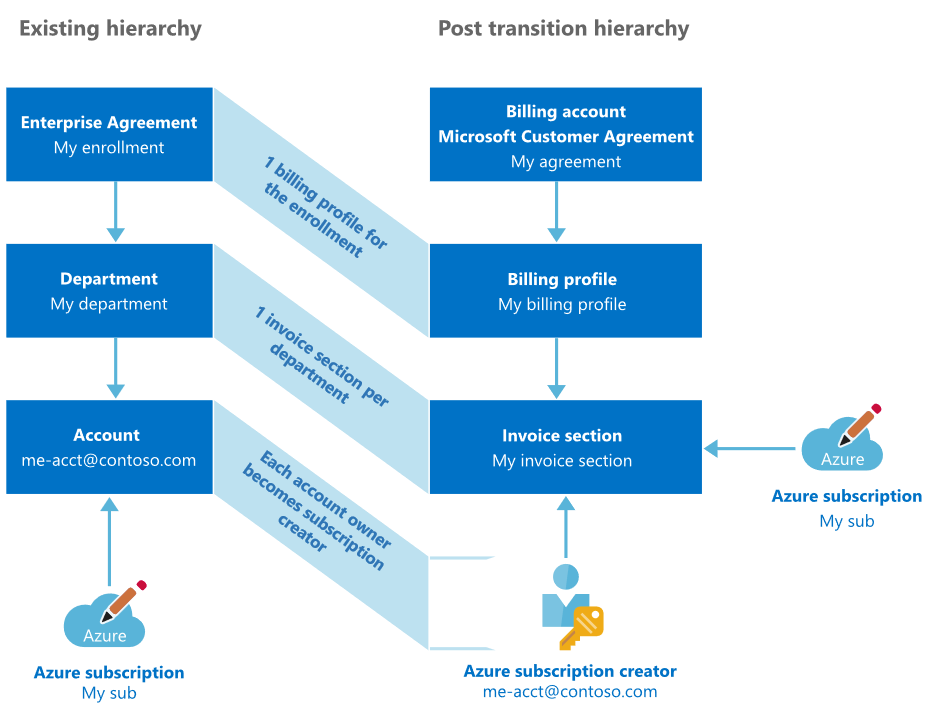
Billing account simplifies billing for your organization while providing you enhanced billing and cost management capabilities. The following diagram explains how billing is organized in the new billing account.
Before we being the process of delegation, It is important to understand this Hierarchy, so we can correctly proceed with the technical work ahead.
Enterprise Administrator
Has the ability to add additional Enterprise and Department Administrators, Additional this persona can
Add Departments
Add or Associate Accounts to and Enrollment
Can view usage and charges across ALL Accounts and Subscriptions
Can view the monetary commitment balance associated to the Enrollment
There is no limit on the number of Enterprise Administrators that can be associated with an Enrollment, and additionally a notification contact can be assigned to receive all email notifications issued.
Department Administrator
The Department Administrator has ability to do the following:
Create Department Administrator (Department focus – click on add administrator)
View/Edit Department properties such as name or Cost Center (Department focus – click on edit pen icon)
Create a new Account Owner on the Department they administer (Switch to Account focus – click on add account)
Remove the associated Accounts from the Department they administer (In Account focus – hover over account and then select the x icon to delete)
Download usage details of the Department they administer (Switch to Reports panel on left – Select Download Usage focus)
View the monthly Usage and Charges associated to their Department if Enterprise Administrator has granted permission to do so. (Switch to Reports panel on left –Select Usage Summary focus)
Enable the Account owners to create Non Production Subscriptions
Subscription Offer MS-AZR-0148P for Dev/Test
Subscription Offer MS-AZR-0017P for Production
Account Owners
The Account Owner can add Subscriptions to their Accounts. Additionally they have the ability to
Update the Service Administrator for a Subscription
View Usage Data for their Account
If enabled by the Enterprise Administrator, can also view Account Charges
Enumerate existing subscriptions in their account
Create new subscriptions within the scope of their account
The Account Owner also has the privilege’s of delegating their responsibility (Role) to a Service Principal; which is the core of the process we are going to undertaken in this post.
As of March 2020; this is no longer relevant.
This account is REQUIRED to have established at least on subscription manually.
In the EA Portal, the Account page for a Department will present a list of established subscription.
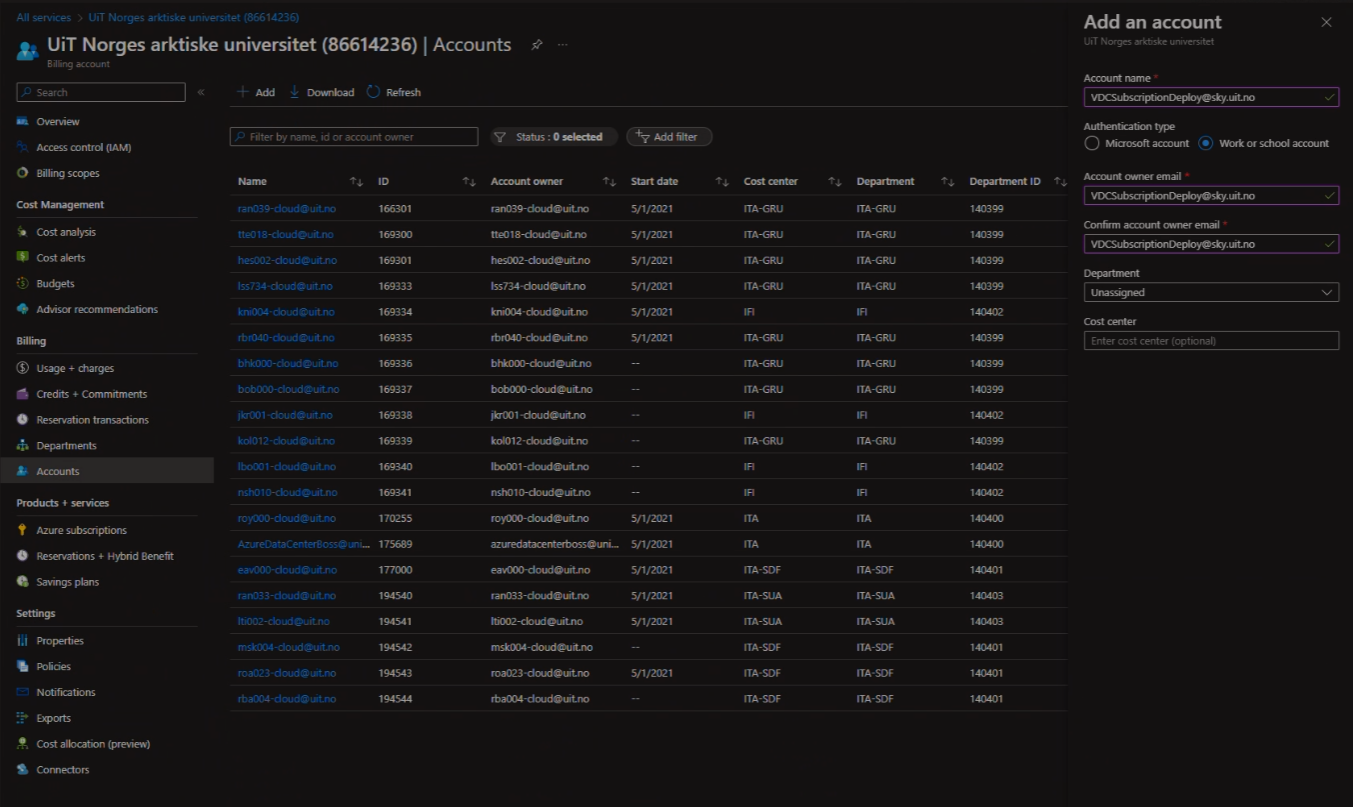
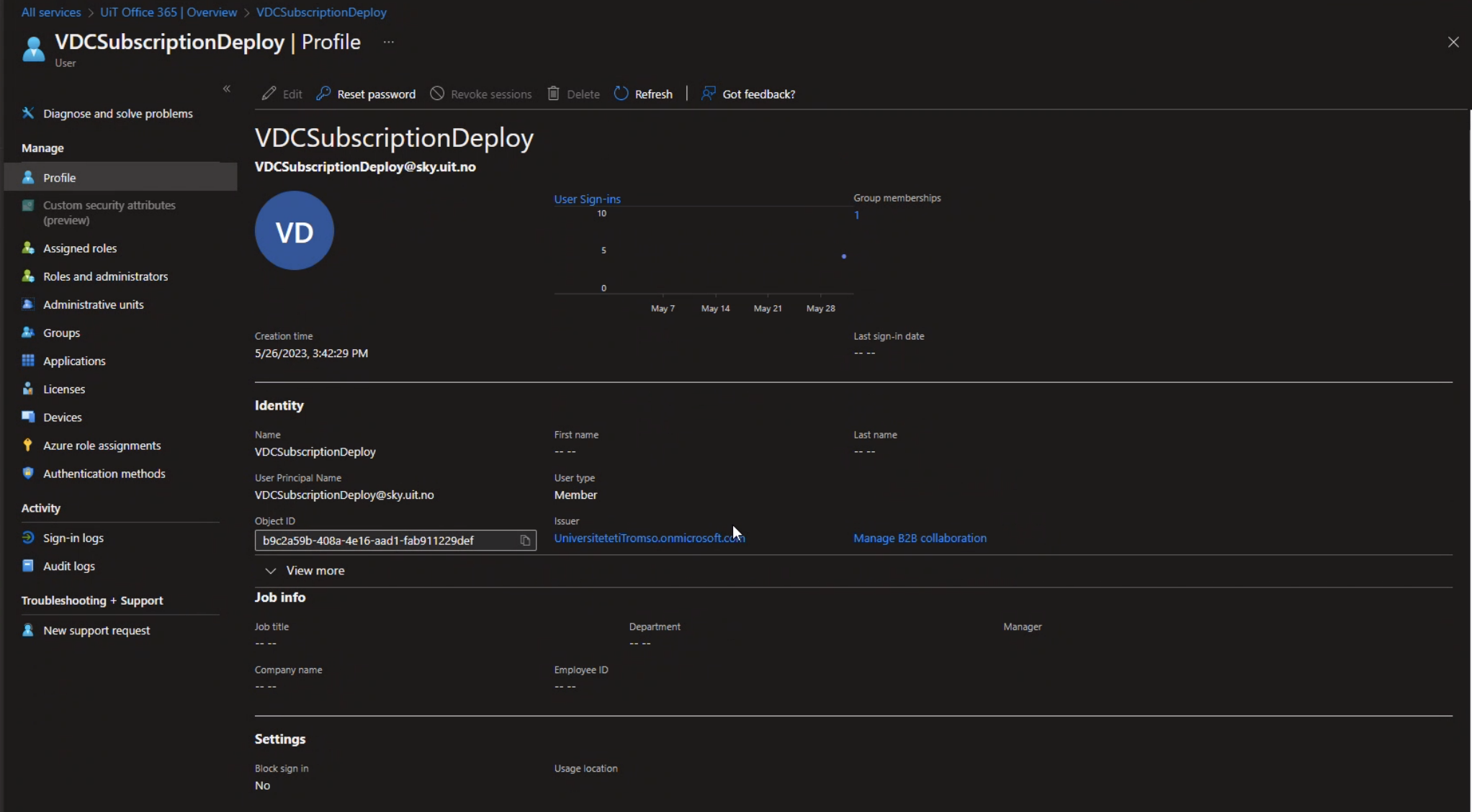
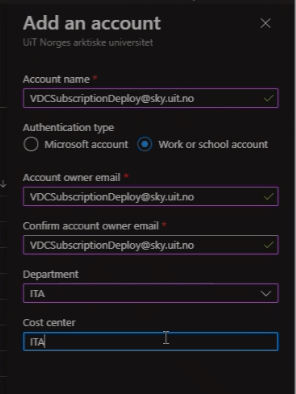
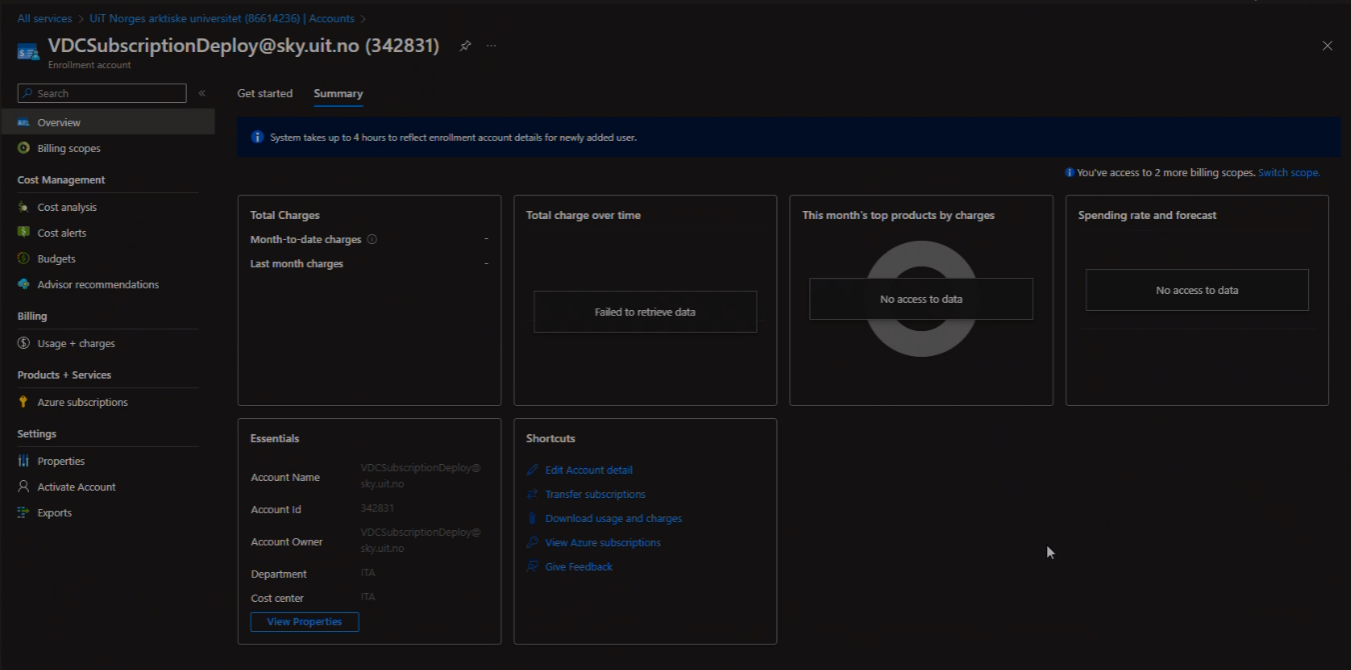
For the test implemention we have created a new account with the following identity VDCSubscriptionDeploy@sky.uit.no
This account needs to be added to the Cost Management + Billing blade in the Azure portal, by a user which has the premissions on the EA
Add the account
Account Delegation Details
Programmatic Subscription Creation
The objective of the is process is to delegate the EA Account Owner privilege’s to a Service Principal, which can be leveraged to programmatically establish subscriptions. While the procedure is not overly complex; we will break the operation in 4 key milestones, which should make this easier to understand.
EA Department Account Owner
Service Principal for Delegation
Delegating EA Account Owner Privilege’s
Validation
EA Department Account Owner
Using the Azure AD account credentials for your Microsoft Tenant, you should be able to authenticate with the EA Portal, and view the Account page, as illustrated earlier.
Once you have confirmed that this works as expected, we will repeat this authentication again, however this time, using either the Azure Powershell Module or the Azure CLI; The guide will present the commands used in either scenario.
Authenticate to Azure the EA Account Owner Credentials
With working credentials validated in the EA Web portal, proceed with a new shell session and authenticate to Azure with your EA Account Owner credentials; you may also take advantage of the Azure Cloud Shell which will automate the login experience.
The credentials MUST be hosted in the tenants AAD instance.
Microsoft Accounts, or Guest accounts from other AAD Tenants are NOT Supported for the following procedures.
AZ CLI
bashShowHide 3 lines⌄
az login --allow-no-subscriptions
# Authenticate as the account which was established with EA Account Permissions# This will create a new context, for us to work with the EA API
Once you have authenticated, we will verify that the credentials do indeed have access to the EA environment, but getting a list of the EA Accounts which can be accessed
$> az billing enrollment-account list
[{"id": "/providers/Microsoft.Billing/enrollmentAccounts/88888888-8888-8888-8888-888888888888",
"name": "88888888-8888-8888-8888-888888888888",
"principalName": "eaaccountowner@org.onmicrosoft.com",
"type": "Microsoft.Billing/enrollmentAccounts"}]
Assuming the results of these commands, presents back your account, and a billing enrollment object we are ready to proceed. If this is not the case, you must check that you are using the correct account.
The important data you have as we complete this stage is
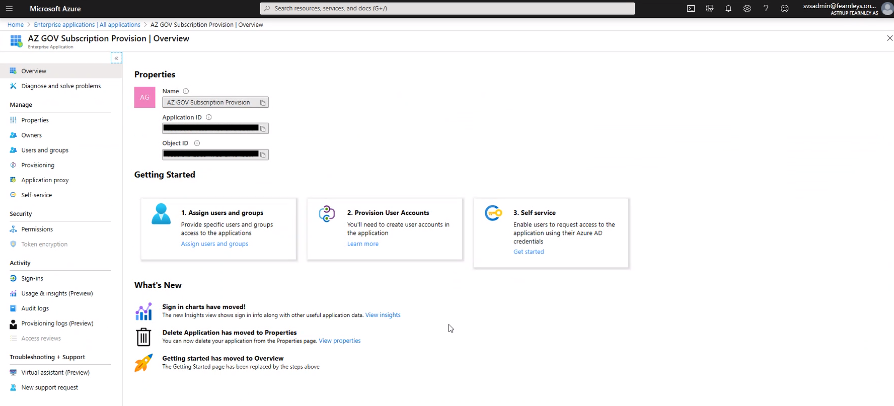
Our objective is to delegate the role of creating new Azure Subscriptions to a Service Principal. Before we begin that effort; we first need to know the ObjectID of the (Service Principal) SPN which we are delegating to.
We have two options, we can create a new Enterprise Application Credential, or we can create a Managed User Identity for the delegation
Create a new principal
Establish a new AzureAD Application and a Service Principal in the AD Tenant. If you have an existing application which you would rather utilize; we can skip this step and reference that object in the next stage
Alternative, we can reference an existing application, and get its Application Id, in this case we simply provide the display name of the service principal we are going to reference
bashShowHide 2 lines⌄
$> az ad sp list --display-name azGOVSubscriptionProvision --query "[].objectId" -o tsv
eeeeeeee-eeee-eeee-eeee-eeeeeeeeeeee
Delegating EA Account Owner Privilege’s
Finally, we are at the heart of the show. We will delegate the Account Owner role to the chosen Service Principal.
Add the service principal to your enrollment account
The following command will allocate the Owner role to the EA Account Id which we discovered earlier, to our chosen Service Principal
Finally, To ensure the ability of assigning Onwers to the new subscriptions, we MUST also ensure that the Service Principal has the minimum privilege’s of Azure AD ‘Directory Reader’ role
Fantastic - now we need to wait for the clock work engine in the back of the cloud to wake up the Noddy. Go have a Coffee, and then we can check the results of our efforts
These delegations must be allowed to propagate, I have observed this taking up to 1 Hour!
Validation
The final stage of this effort is to validate that everything is working as desired. After waiting for delegations to propagate, we will authenticate to Azure as our Service Principal, and then attempt to communicate with the services we have granted access to. Ready?
Login as your new Service Principal
With a new shell (or an existing on if you wish); we will proceed to login to Azure using the Service Principal Credentials.
I assume the service principal has no Azure subscriptions delegated to it; so we will indicate that also at login time, to prevent warning.
First test, lets see if we can read some object from the Azure AD
bashShowHide 1 line⌄
$> az ad user list
Assuming no issues, you should see a list of users scroll by, feel free to terminate that process when you are satisfied that this is working to plan
Check we have access to the Enterprise Agreement Account
Now, the real meat; Do we have access to the Enterprise Agreement Account?
bashShowHide 9 lines⌄
$> az billing enrollment-account list
[{"id": "/providers/Microsoft.Billing/enrollmentAccounts/88888888-8888-8888-8888-888888888888",
"name": "88888888-8888-8888-8888-888888888888",
"principalName": "eaaccountowner@org.onmicrosoft.com",
"type": "Microsoft.Billing/enrollmentAccounts"}]
Assuming you get a response, take a close look at the principalName and you will be presented with the name of the account who have delegated their privilege’s to this active service account to work as.
Explore connections. Hover to highlight neighbours; click or use Enter to visit. On touch, tap to highlight and tap again to visit. The drawing shows up to 40 pages and topics (10 on small screens); all connections remain in the list.